3. Click the PlatformIO icon on the side bar. 
4. Under `Quick Access, Miscellaneous, Clone Git Project` enter the URL of the Meshtastic repo found [here](https://github.com/meshtastic/Meshtastic-device). 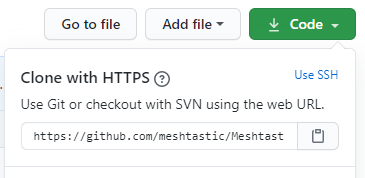
5. Select a file location to save the repo.
6. Once loaded, open the `platformio.ini` file.
7. At the line `default_envs` you can change it to the board type you are building for ie. `ttgo-lora32-v2, ttgo-lora32-v1, tbeam, heltec` (boards are listed further down in the file).
8. Click the PlatformIO icon on the side bar. Under `Project Tasks` you can now build or upload.
## Command Line
1. Purchase a suitable [radio](https://github.com/meshtastic/Meshtastic-device/wiki/Hardware-Information).
4. Run `git submodule update --init --recursive` to pull in dependencies this project needs.
5. If you are outside the USA, edit [platformio.ini](/platformio.ini) to set the correct frequency range for your country. The line you need to change starts with `hw_version` and instructions are provided above that line. Options are provided for `EU433`, `EU835`, `CN`, `JP` and `US` (default). Pull-requests eagerly accepted for other countries.
7. Type `pio run --environment XXX -t upload` (This command will fetch dependencies, build the project and install it on the board via USB). For XXX, use the board type you have (either `tbeam`, `heltec`, `ttgo-lora32-v1`, `ttgo-lora32-v2`).
8. Platform IO also installs a very nice VisualStudio Code based IDE, see their [tutorial](https://docs.platformio.org/en/latest/tutorials/espressif32/arduino_debugging_unit_testing.html) if you'd like to use it.


